Creatium Studio User Guide
Getting started
What you’ll learn
A high-level walkthrough of Creatium Studio, including how the platform is organized and where to find the core tools for creating, managing, and sharing interactive learning experiences.
Understand the main navigation
When you log into Creatium Studio, you'll land on the home page where you can jump straight into creating. Choose from Interactive lessons, Coaches, Simulations, Knowledge checks, and Roleplays. Each card takes you into a guided workflow for that content type.
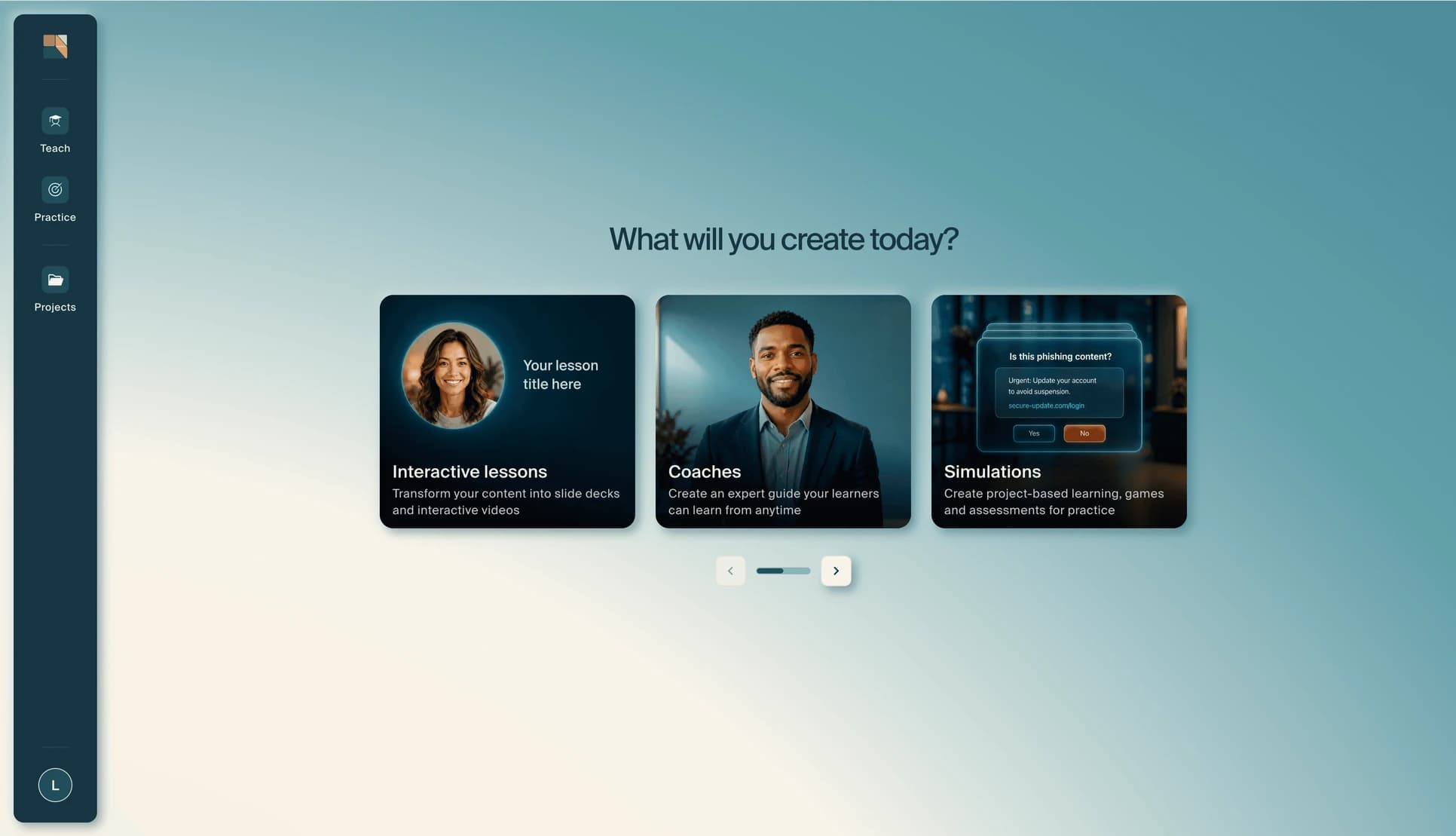
The left sidebar organizes the rest of your workspace:
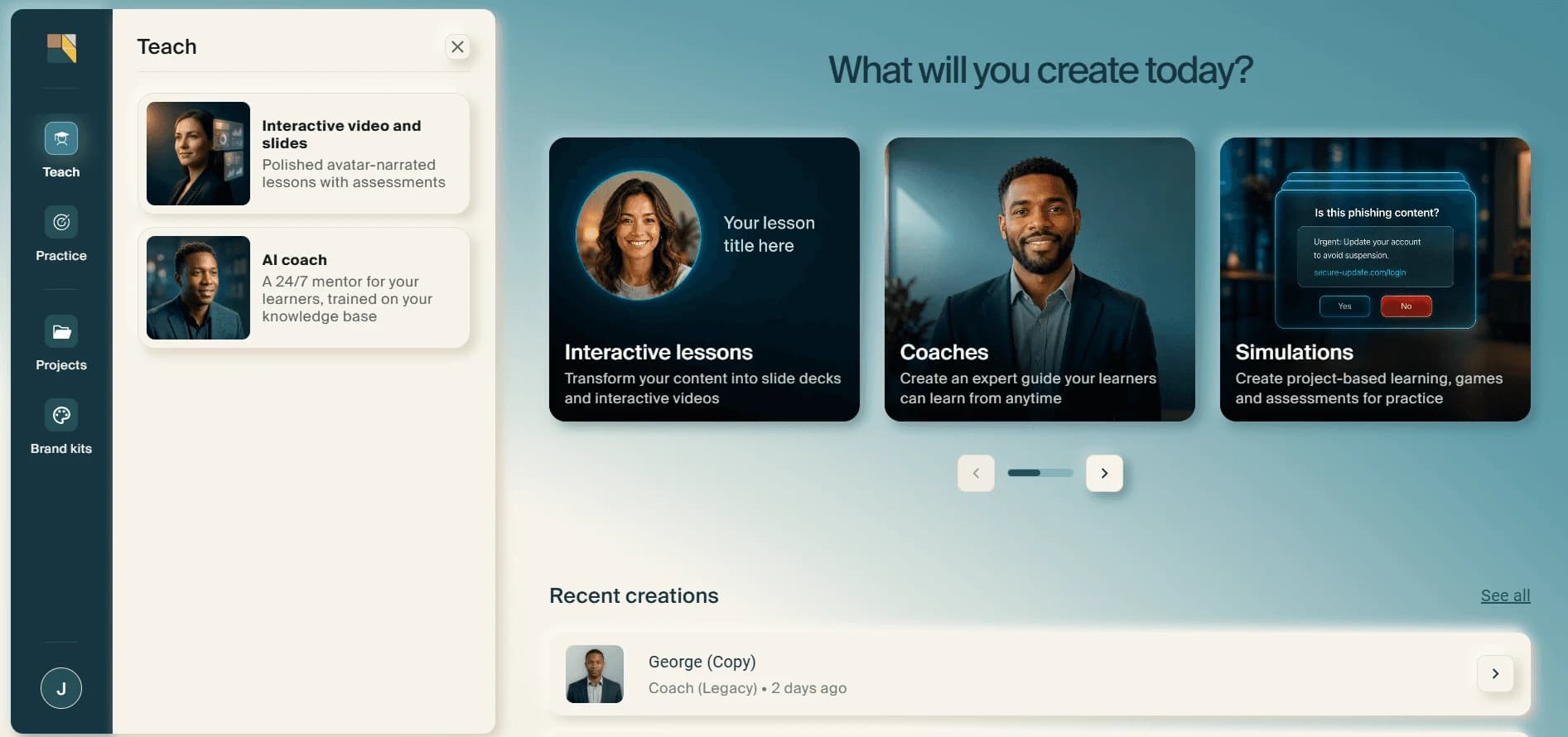
Teach: Create interactive lessons and AI coaches. This is where you build content that teaches your learners a topic or concept.
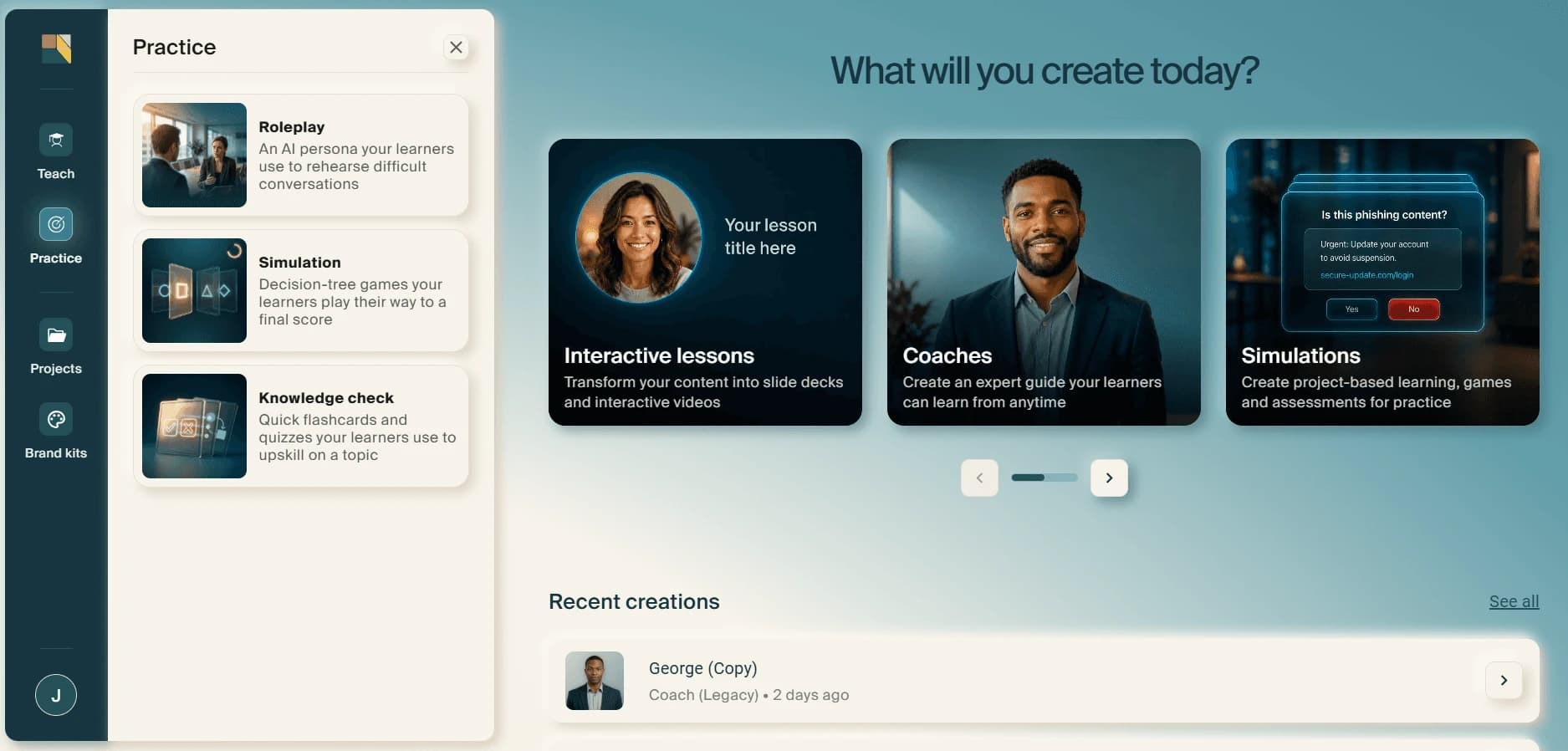
Practice: Create simulations, knowledge checks, and AI roleplays. This is where you build content that lets learners apply and test what they've learned.
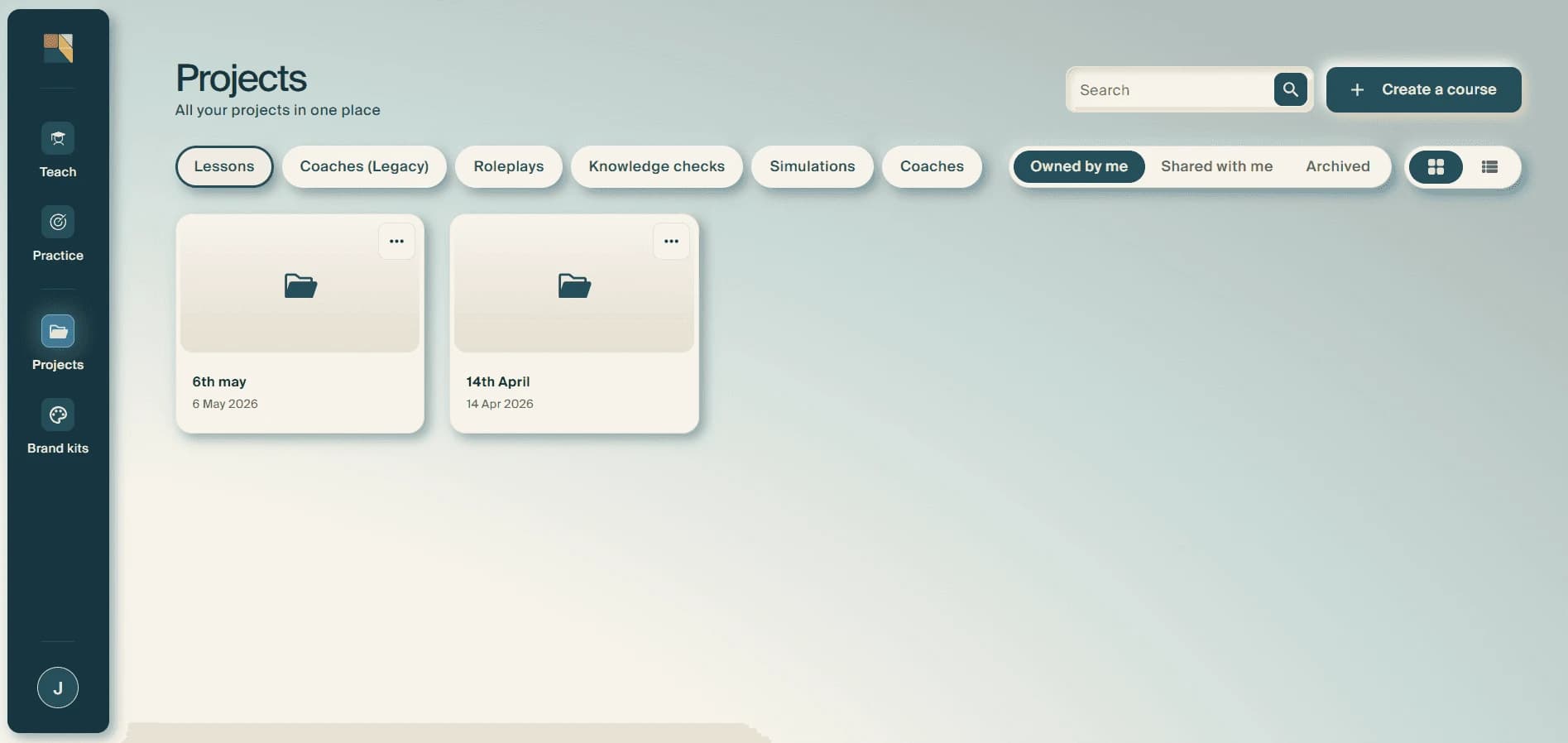
Projects: Your content library. View, edit, duplicate, and manage everything you've created. Use the filter tabs at the top to find specific content types, and share any project with teammates directly from here.
Collaborate with your team
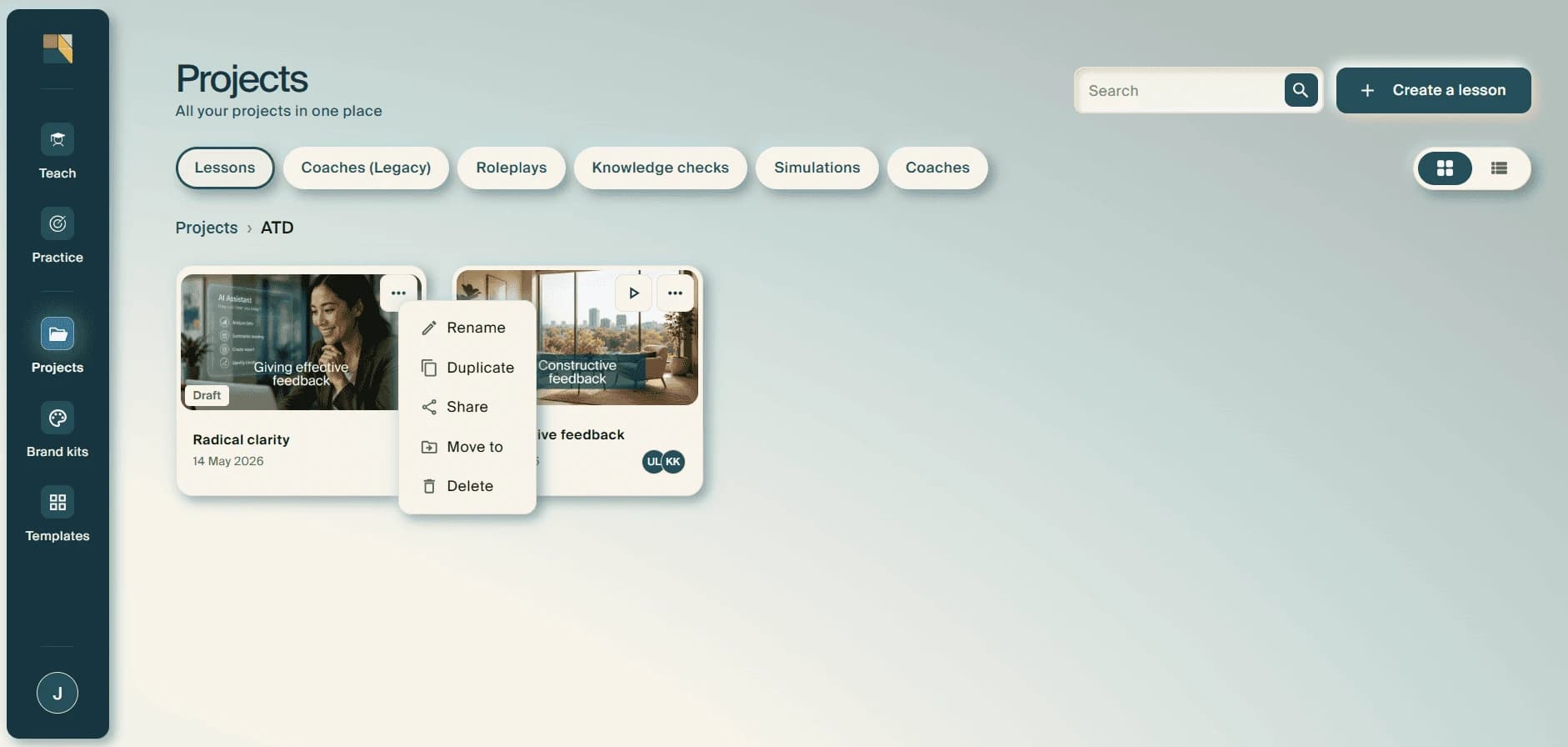
Share any project with colleagues by clicking the three-dot menu on a project card and selecting Share.
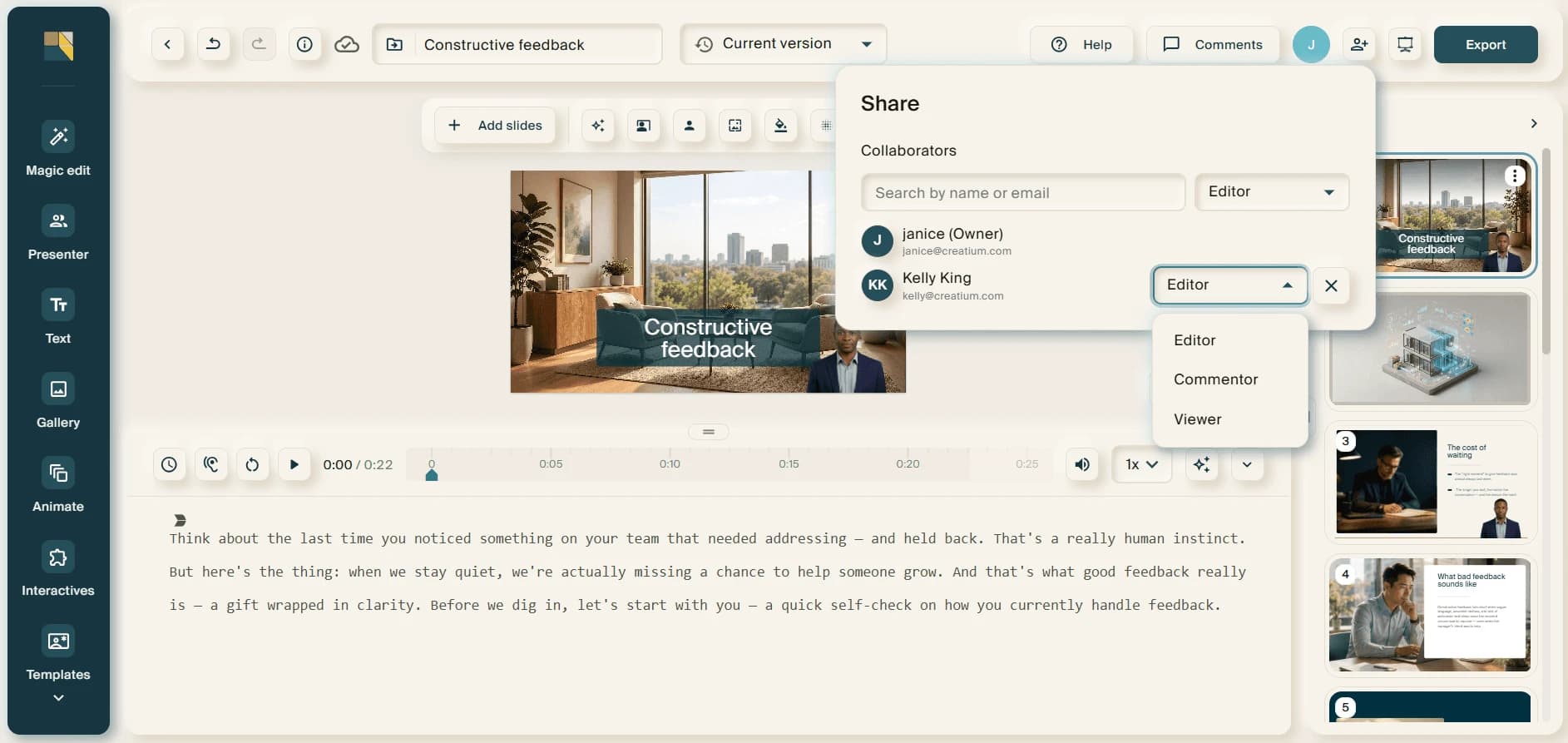
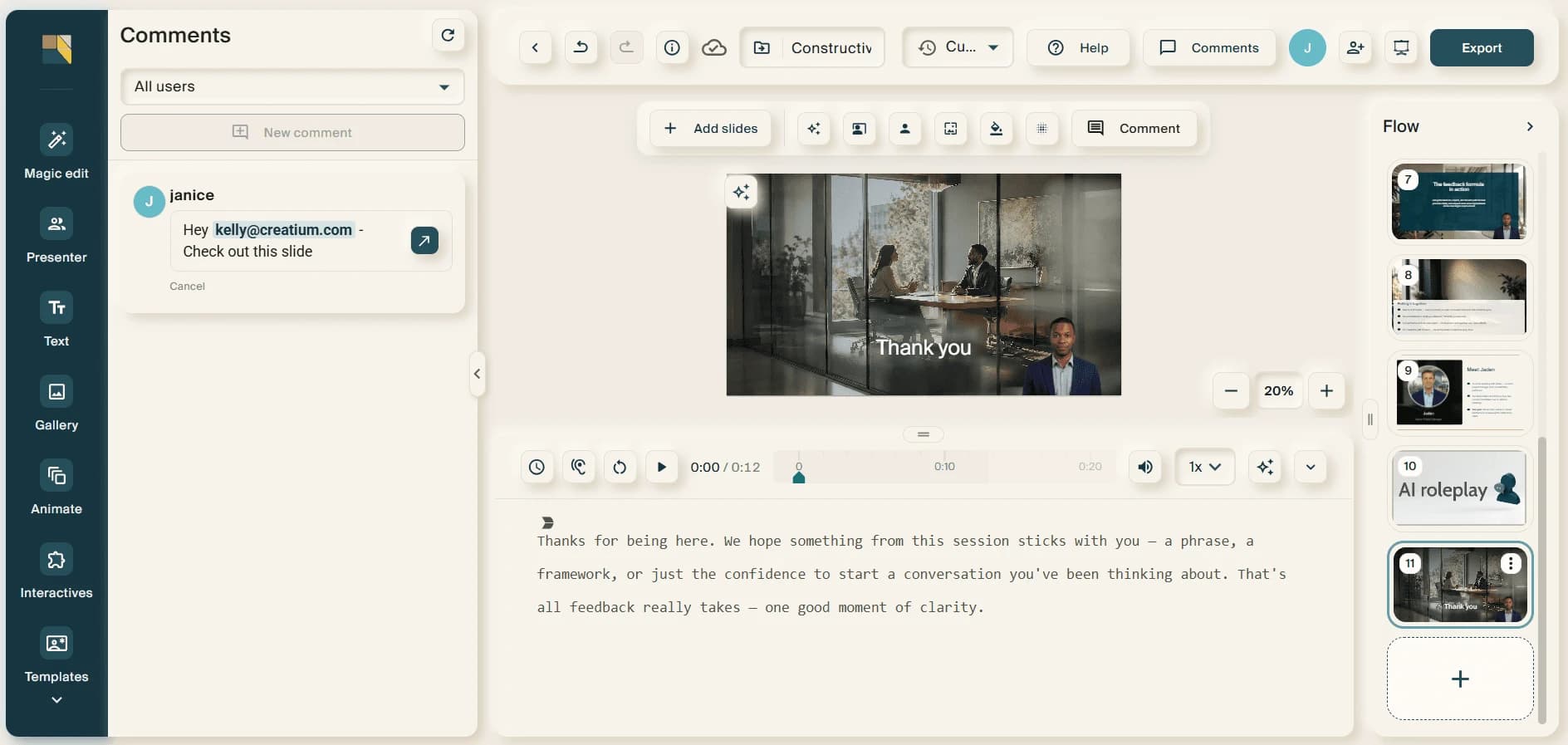
Assign permission levels (Editor, Commentor, or Viewer), work on the same project in real time, and leave comments on individual slides to collect and manage feedback in one place.
Review learner analytics
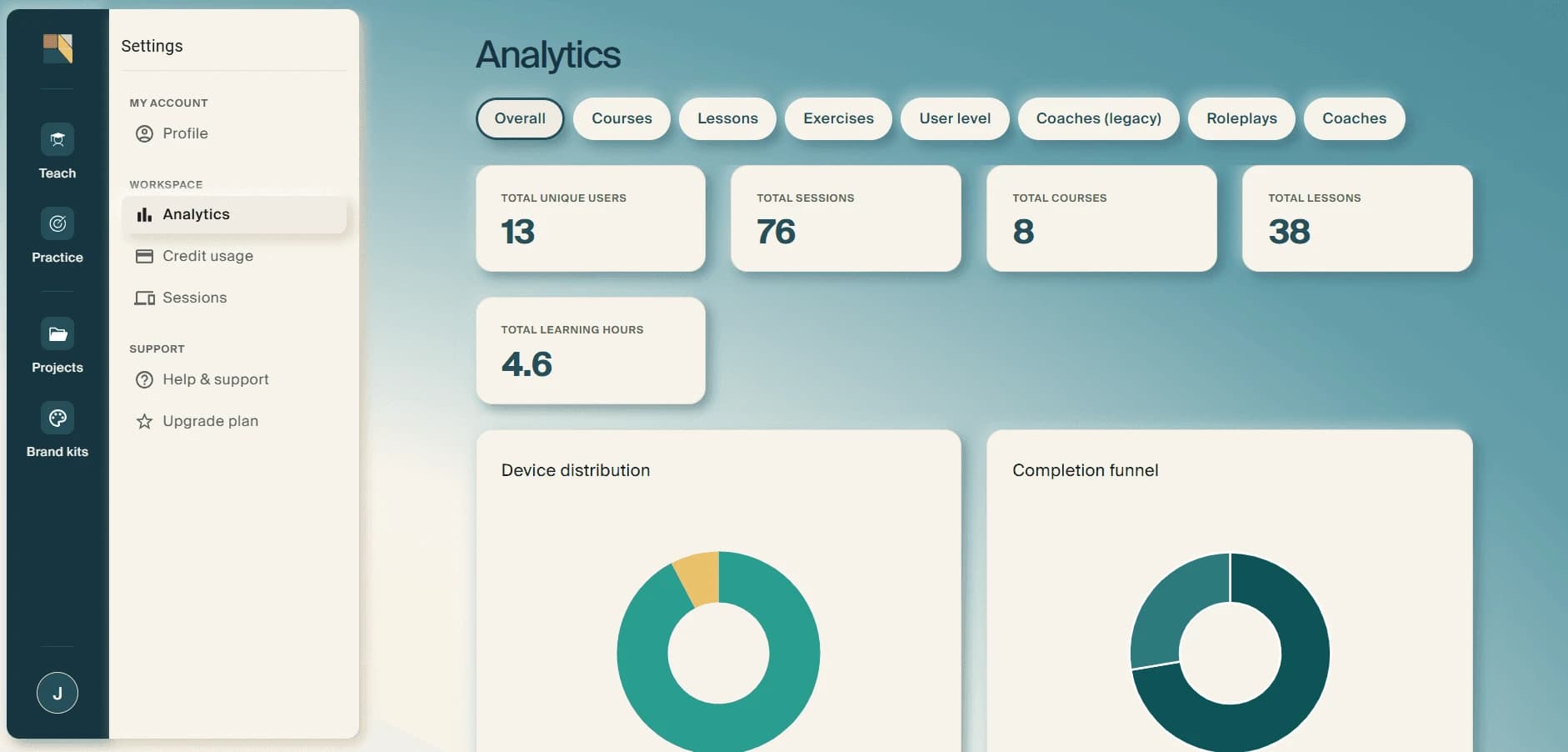
Track learner engagement and performance by opening Analytics in your account settings. View participation, review responses and rubric-based evaluations, and identify where learners may need additional support.