Creatium Studio User Guide
User GuideCreating a knowledge check
Creating a knowledge check
What you’ll learn
How to create knowledge checks in Creatium Studio. A knowledge check is a quick, interactive exercise that tests learners on a topic using formats like true or false, multiple choice, drag-and-drop, flashcards, and more. This guide follows three stages:
- Create, where you describe your topic and generate the exercise.
- Edit, where you refine it in the split-screen editor.
- Share, where you finalize and share it with your learners.
Create Knowledge Checks
Describe your topic and generate a knowledge check.
Step 1: Start a new knowledge check
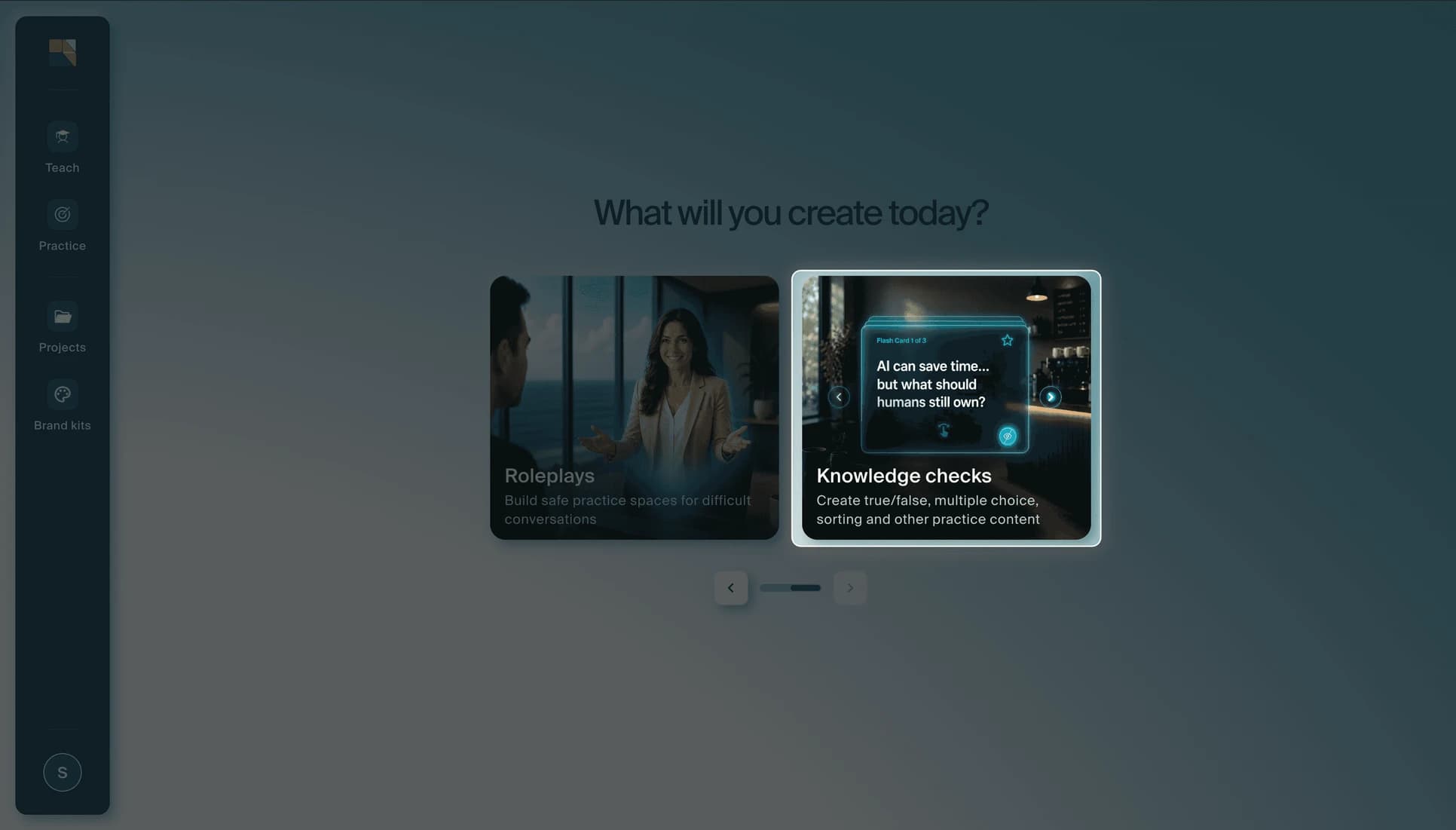
From the Creatium Studio home page, click the Knowledge checks card.
Step 2: Describe your topic
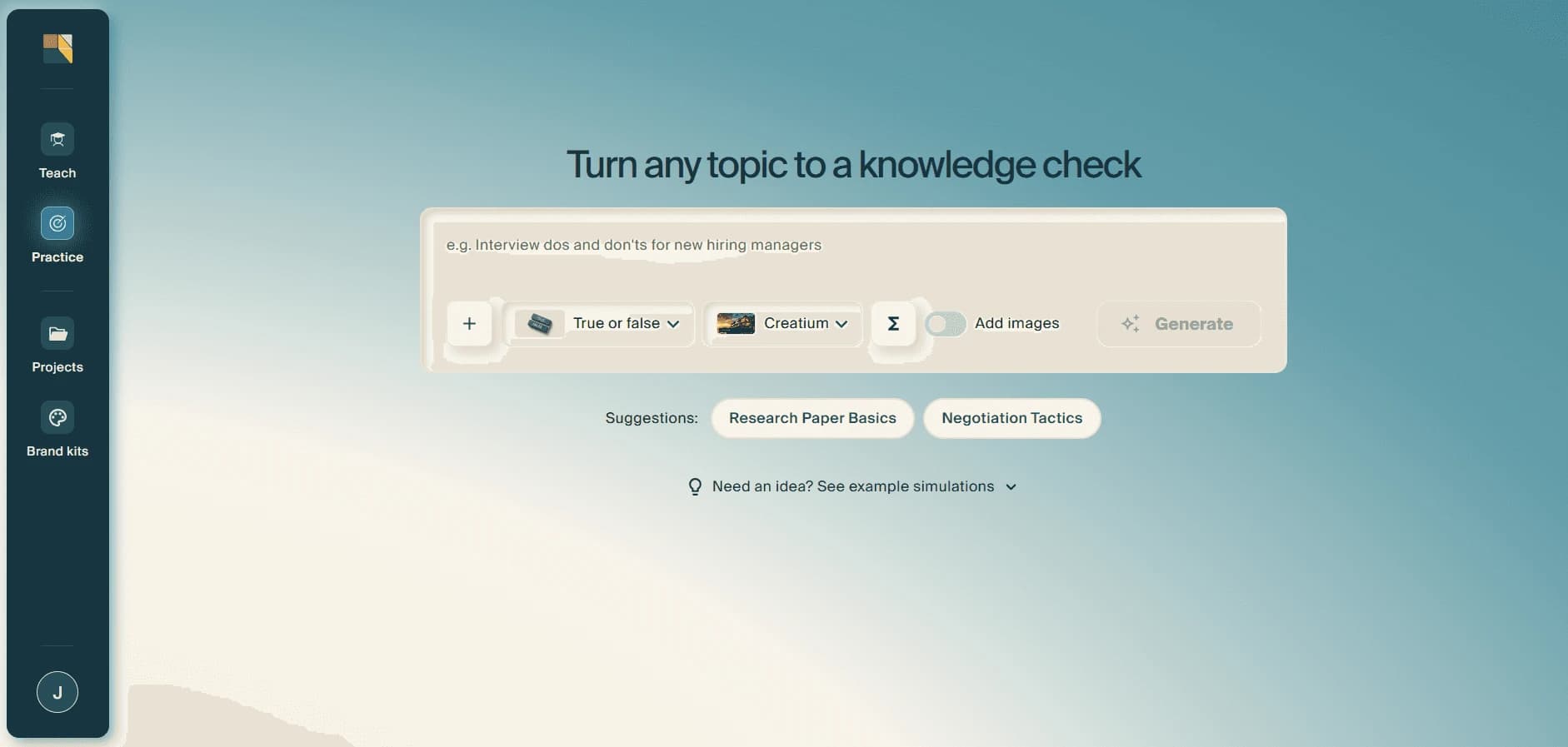
In the prompt field, describe the topic you want to test learners on. You can also use one of the quick-start suggestions, or expand. See example simulations for inspiration.
Step 3: Choose format
Before generating, configure the options below the prompt:
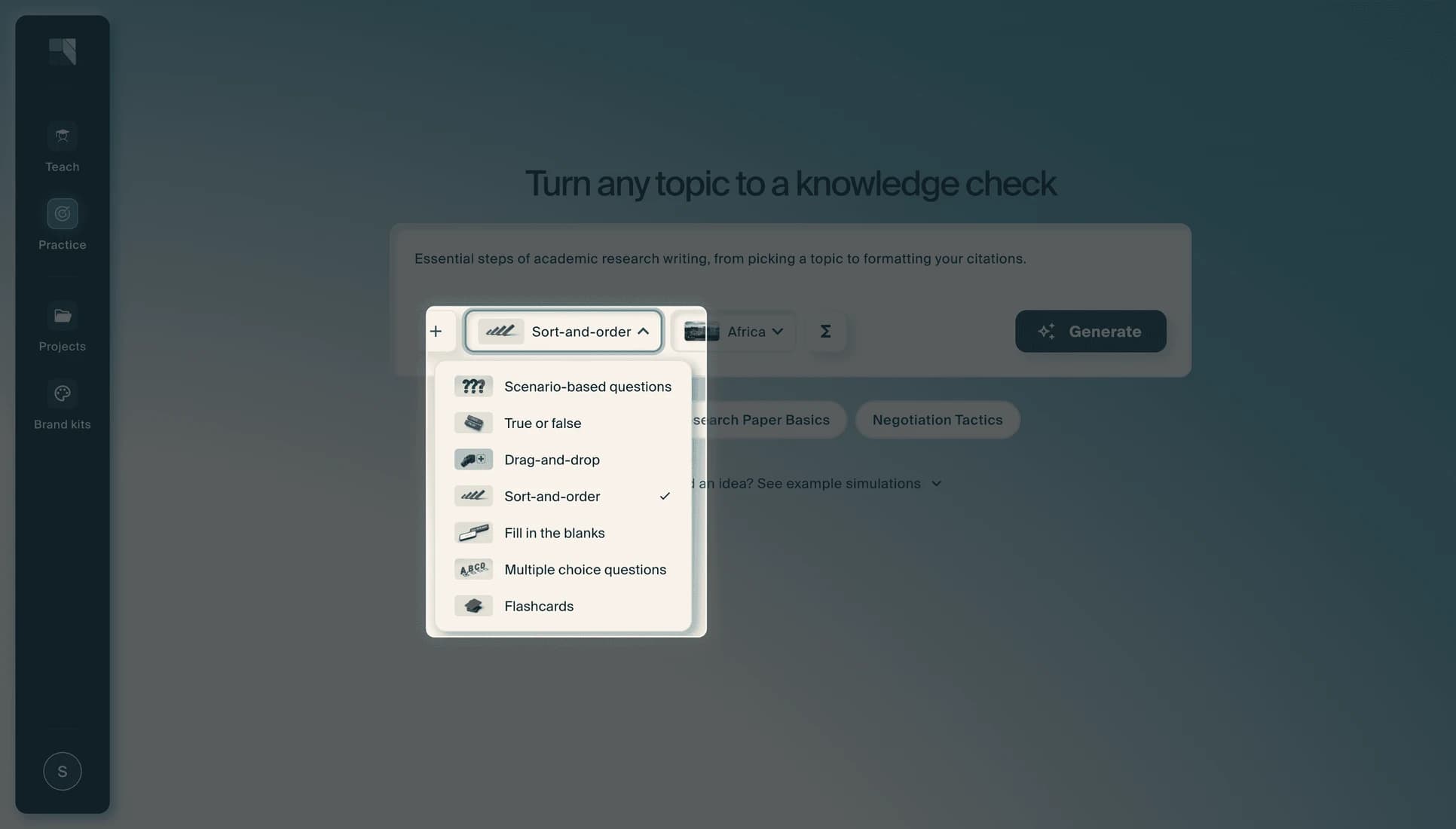
- Format: choose the exercise type, such as True or false, Scenario-based questions, Drag-and-drop, Sort-and-order, Fill in the blanks, Multiple choice questions, or Flashcards.
- Theme: select a visual theme for the exercise.
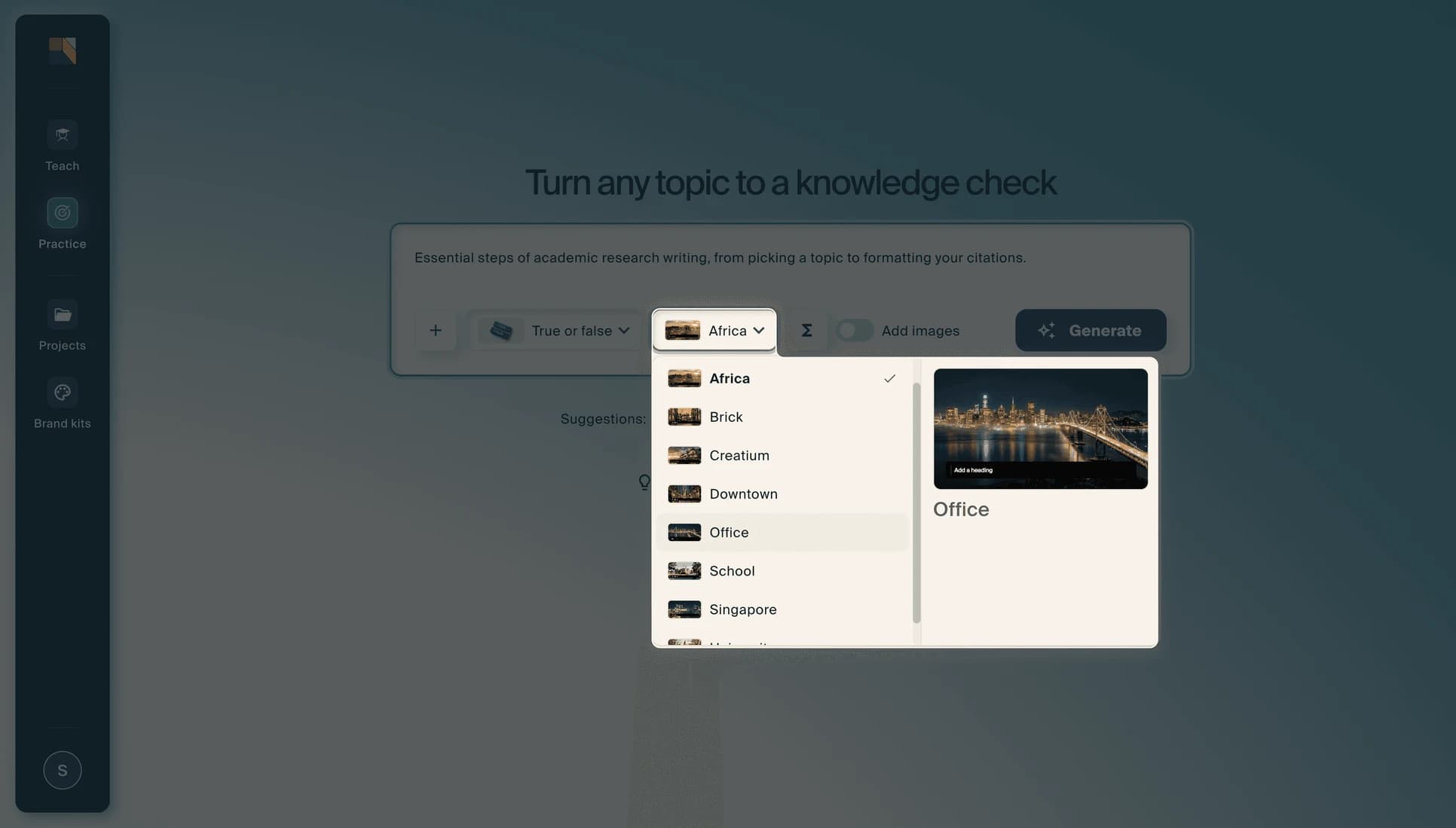
- Add images: toggle this on to include AI-generated images.
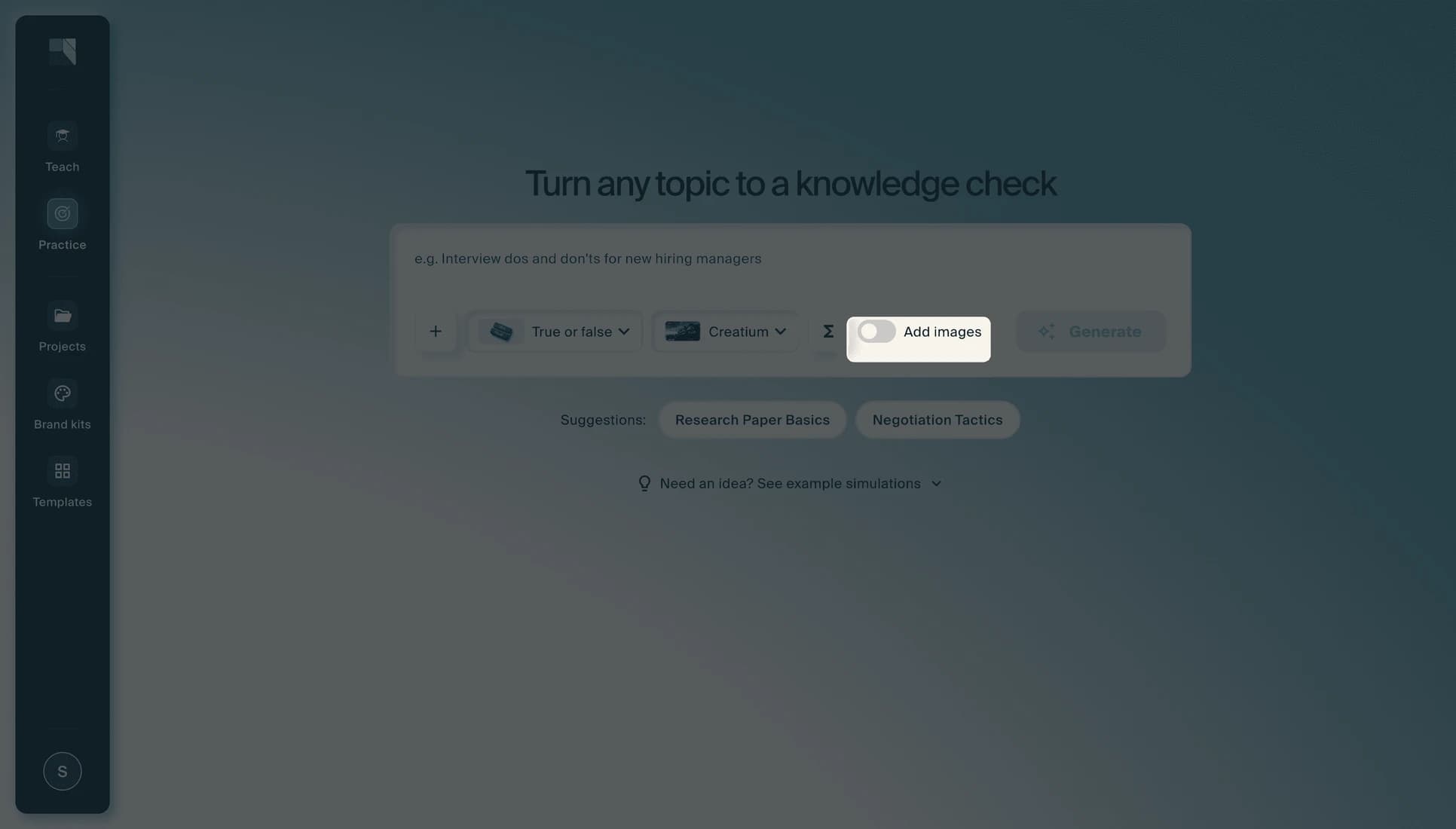
- Upload PDF or slides: click the + button to upload source material for the AI to build from.
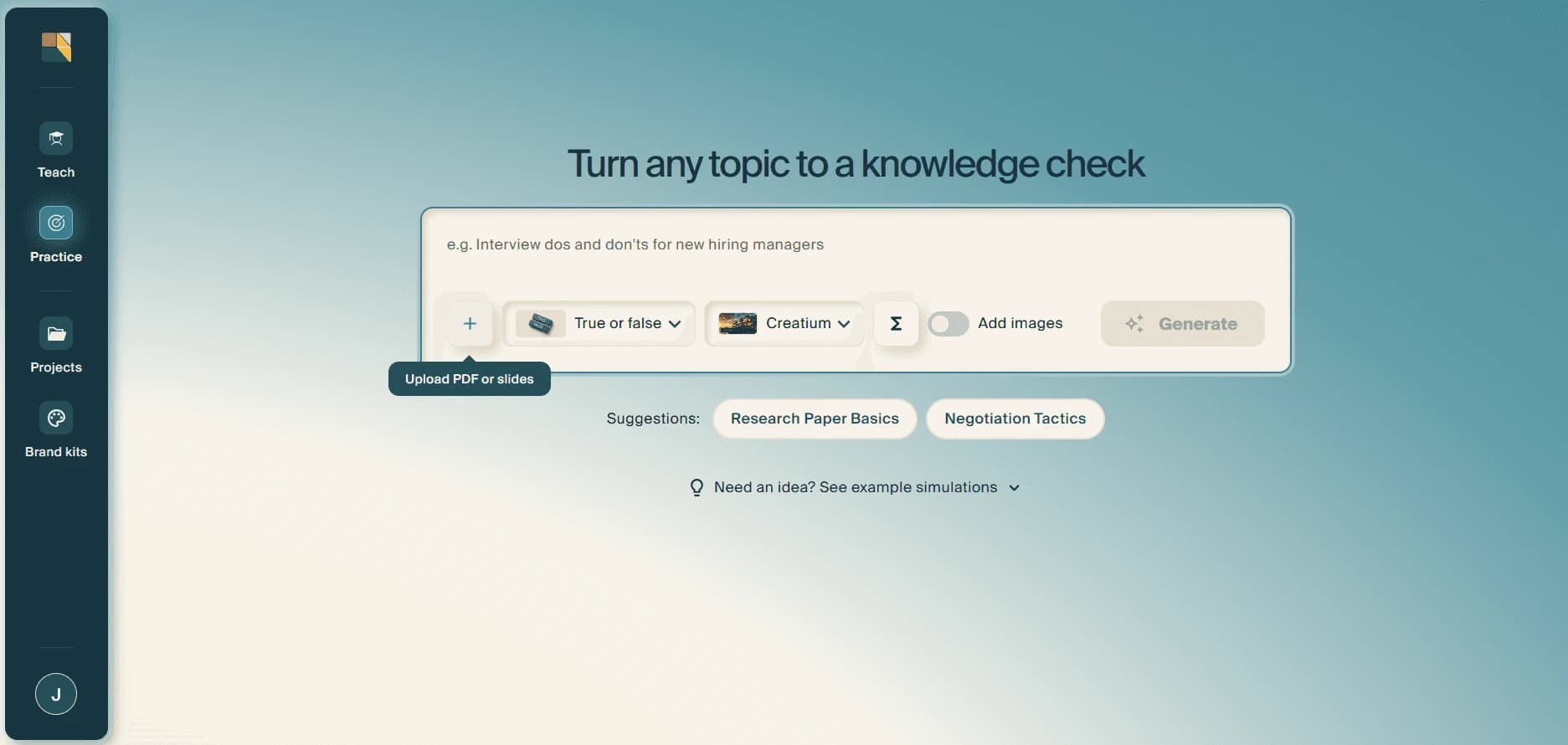
When you are ready, select Generate.
Step 4: Wait for your knowledge check to generate
After you select Generate, Creatium builds the exercise. This may take a moment depending on the format and length.
Edit Knowledge Checks
Refine your knowledge check in the split-screen editor.
Step 1: Preview and refine
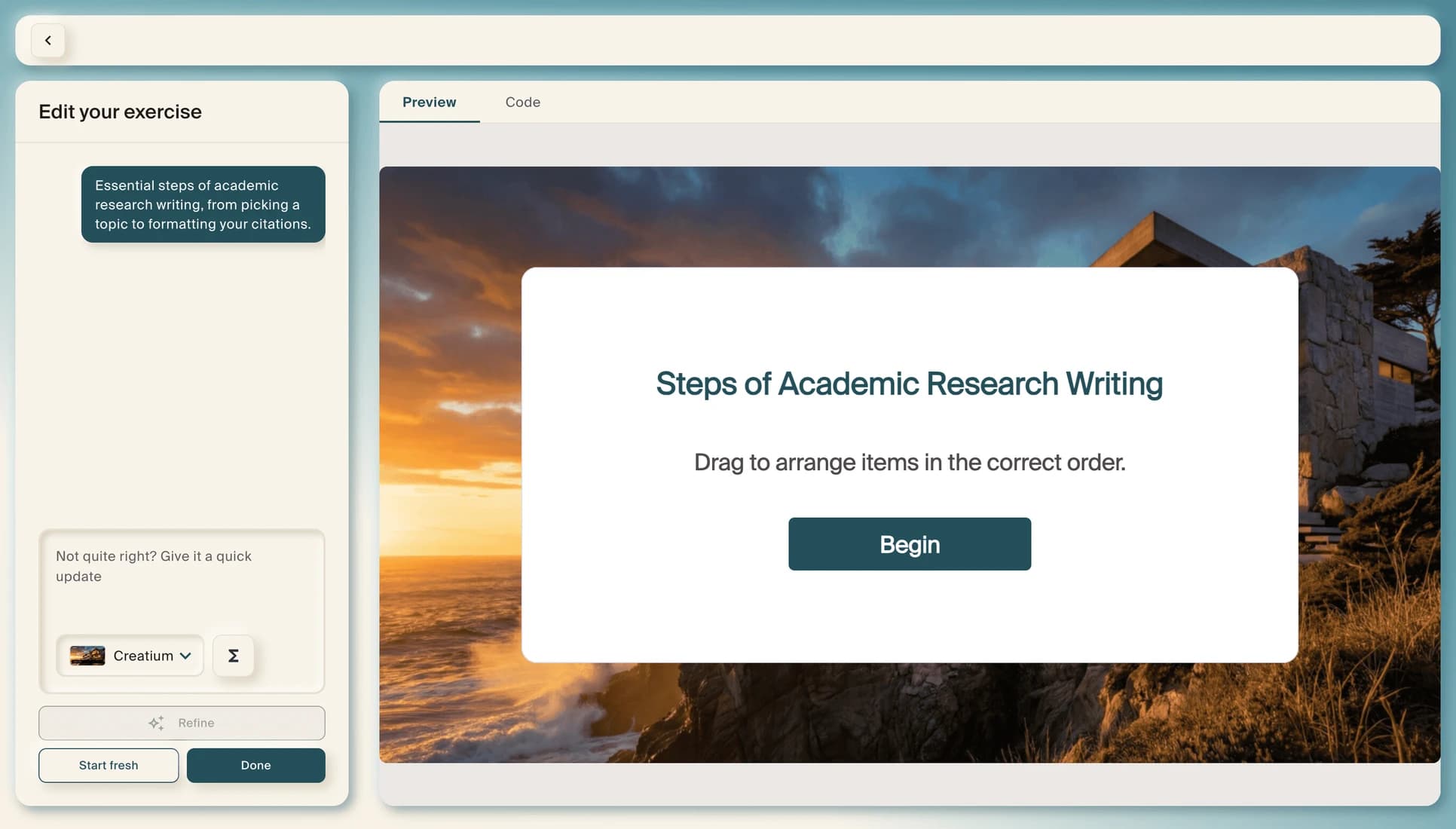
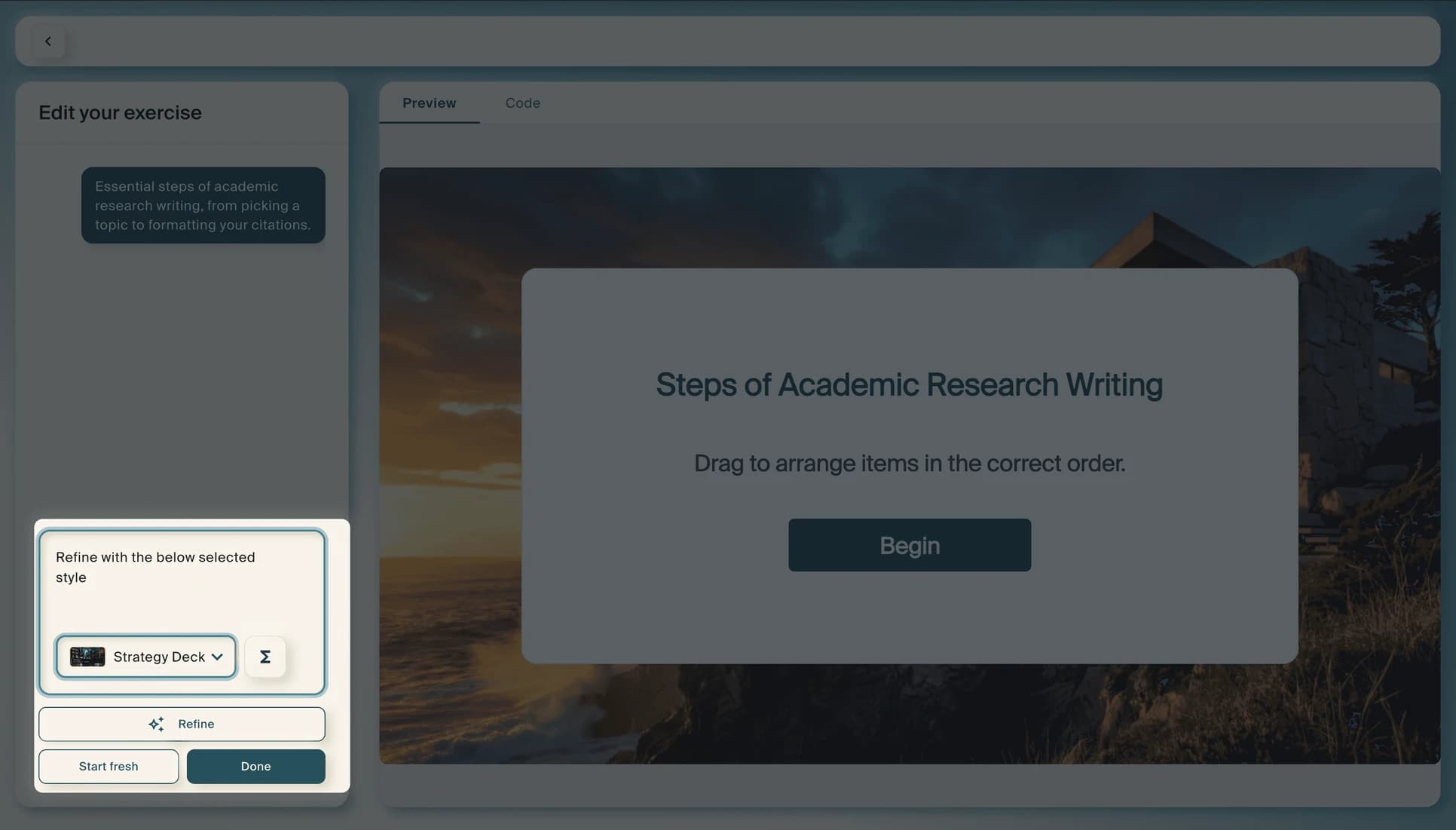
Once generated, you will see a split-screen view: the Edit your exercise panel on the left and a live Preview on the right. Test the exercise by clicking through the questions. To make changes, use the options on the left:
- Type a description of what you want to change, then select Refine.
- Switch the theme from the dropdown.
- Select Start fresh to regenerate from scratch.
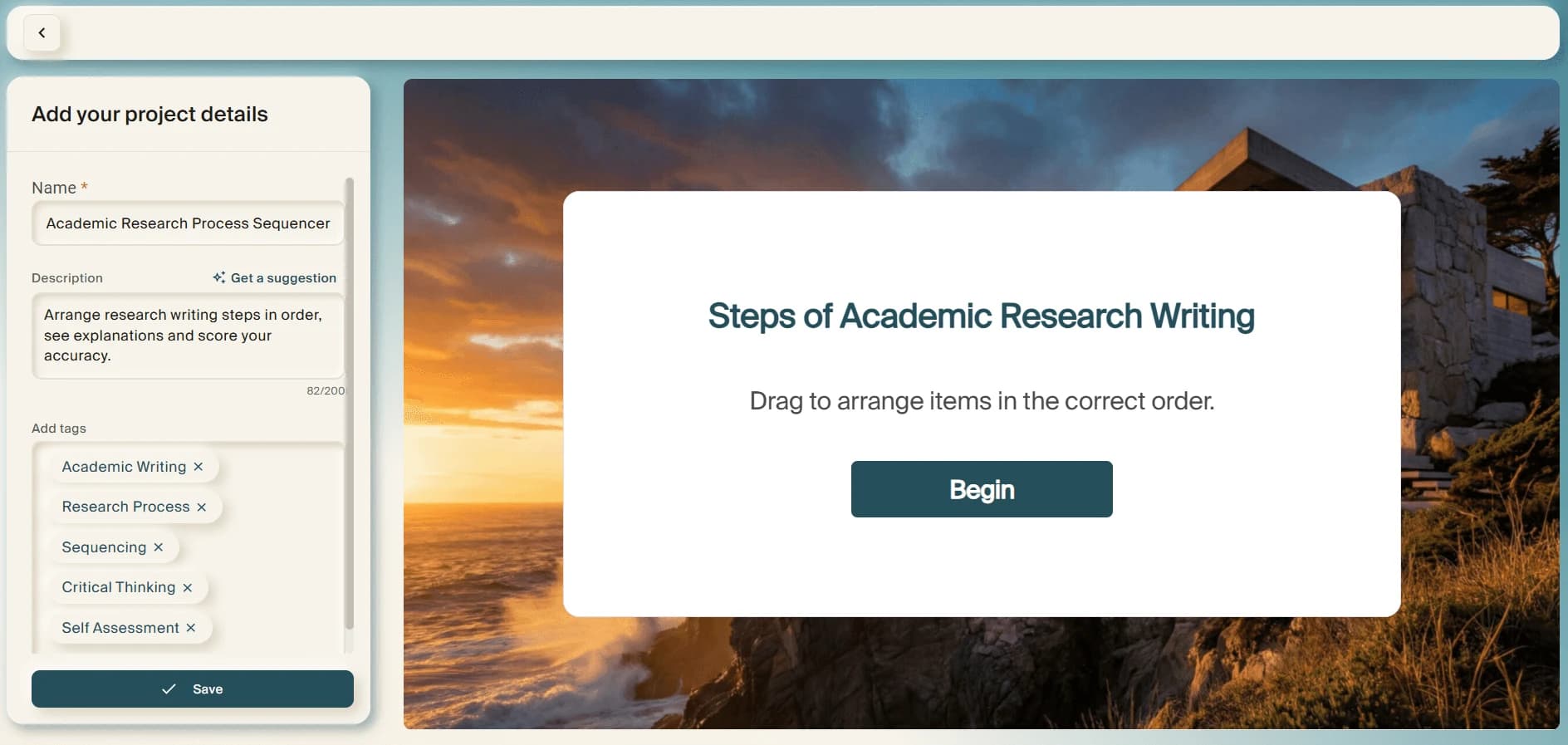
When you are happy with the result, select Done and then hit Save.
Share
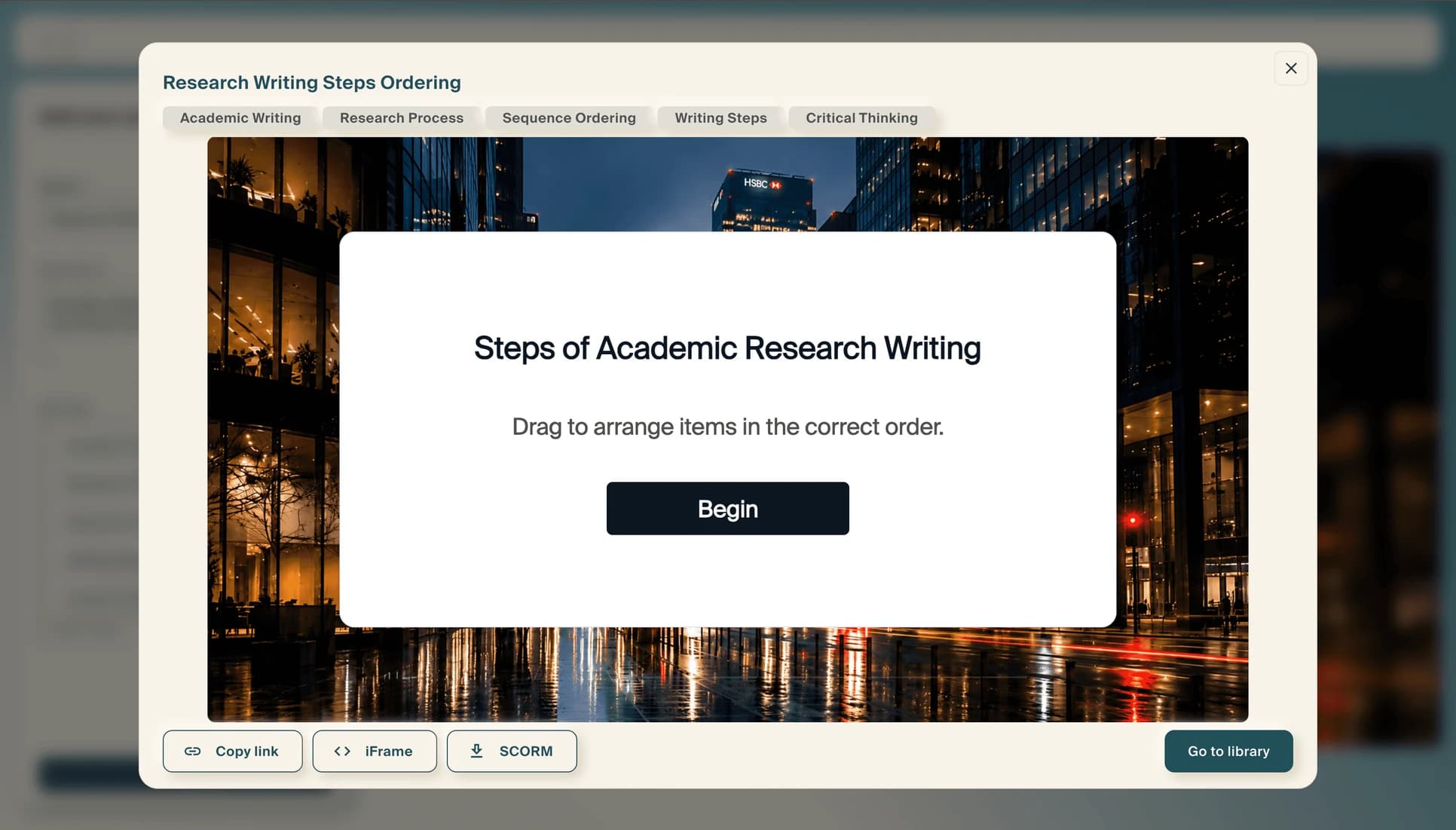
Finalize and share your knowledge check.
Step 1: Manage your knowledge checks in Projects
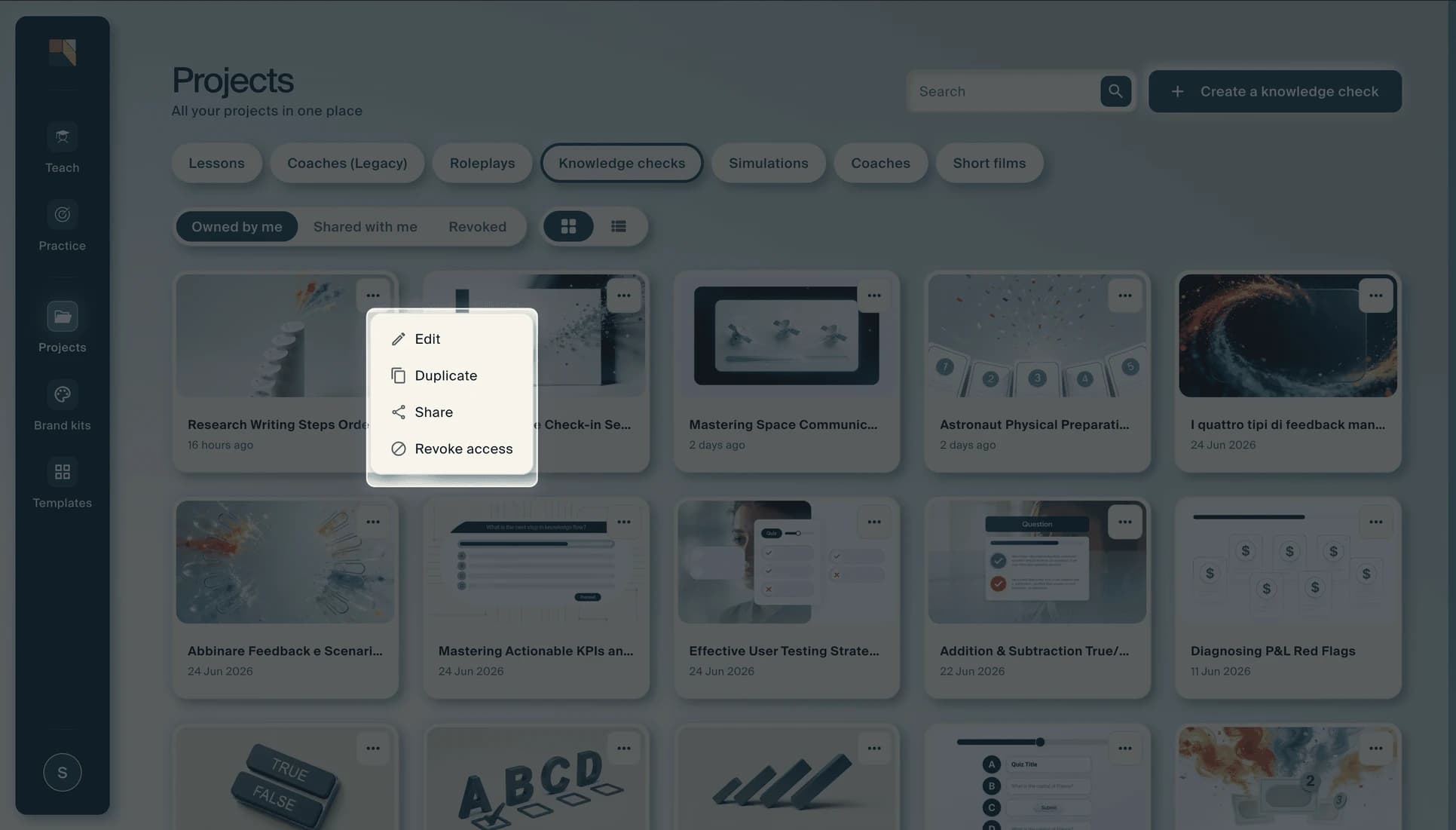
Navigate to Projects in the left sidebar and use the Knowledge checks filter tab to find your exercises. Click the three-dot menu on any card to Edit, Duplicate, Share, or Revoke access.
Step 2: Add a knowledge check to an interactive lesson
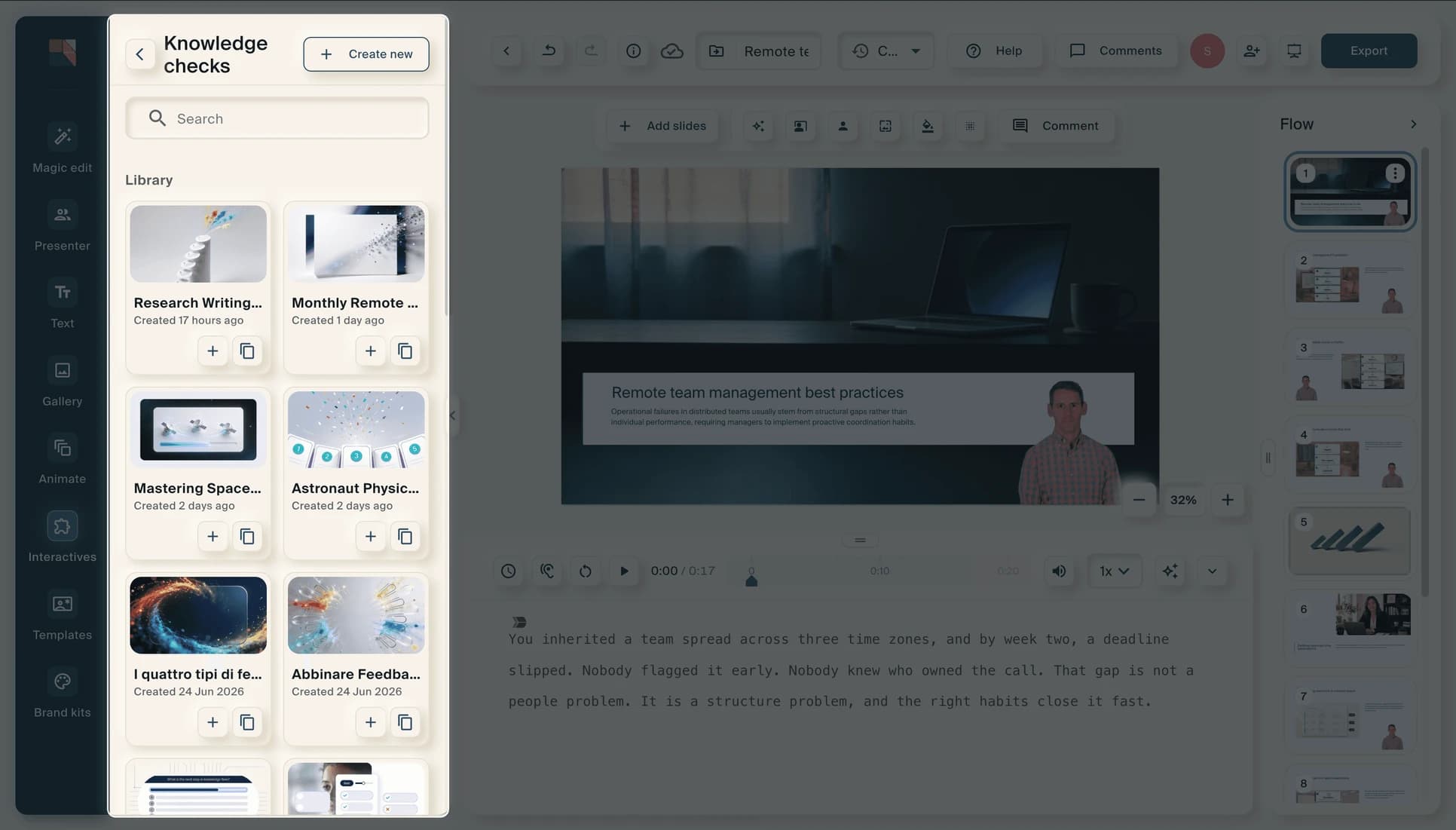
Knowledge checks can also be embedded inside interactive lessons. In the lesson editor, open the Interactives panel from the left toolbar and select Knowledge checks. Browse your library, preview any exercise, and click the + button to add it to your lesson as an interactive slide.